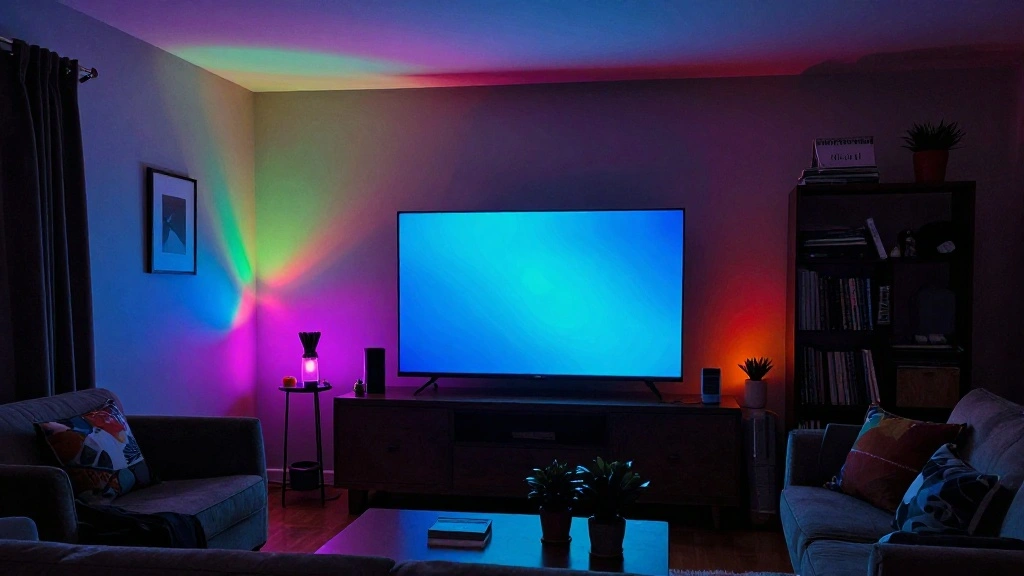
Have you ever wanted to elevate your entertainment experience by syncing your smart lights with your favorite music or movies? The right lighting can transform any room into a dynamic space, enhancing your enjoyment and immersion. Whether it’s a party atmosphere or an intense movie night, synced lights can make a significant impact. Without this feature, you may be missing out on an engaging experience that can captivate your guests or bring your favorite scenes to life.
In this guide, you’ll learn how to sync your smart lights to music and movies. You’ll accomplish a seamless and vibrant lighting setup that responds to audio cues and visual media. By the end, you’ll understand how to configure your smart lights using various applications and devices.
This guide is designed for beginners and will take approximately 1-2 hours to complete. Get ready to transform your space into a stunning light show that dances to the rhythm of your favorite tunes or matches the mood of your films!
TL;DR Summary
- Learn how to sync smart lights with music and movies.
- Follow step-by-step instructions tailored for beginners.
- Transform your entertainment experience with dynamic lighting.
- Complete the setup in approximately 1-2 hours.
Recommended Products

16 Million DIY Colors: Govee smart light bulbs own millions of color and 54 preset scene modes, you can explore your favored one or pick one suits your moods most, bringing yourself a real fantastic lighting experience(Working Voltage: AC 120V).

Easy Voice Control: Our Alexa light bulbs are compatible with Alexa and Google Assistant for easy voice control. Adjust color, set timers, and automate lighting effortlessly. Note: This bulb only supports 2.4GHz WiFi.

【Voice & Group Control】Control the e26 led bulbs with voice commands, and use any APP work with Google Home/Apple Home/Alexa/SmartThings or Linkind's AiDot APP to change colors at any time. Easily add multiple led light bulbs that can be controlled together at the same time (please use a stable 2.4 GHz WiFi).
TL;DR Summary
Editor’s Choice

RGBIC LED Strip Lights, Smart LED Lights for Bedroom, Bluetooth LED Ligh…


A19 LED Smart Light Bulb 3-Pack – White and Color Ambiance – 60W Indoor …

Color Smart Light Bulbs (2-Pack) A19 E26, Matter Compatible RGB + Tunabl…
Prerequisites/Materials Needed
- Smart Lights: Compatible smart bulbs (e.g., Philips Hue, LIFX) – at least two
- Smartphone or Tablet: For app installation (iOS or Android)
- Wi-Fi Network: Reliable internet connection
- Music Streaming App: Spotify, Apple Music, etc.
- Media Player: For playing movies (e.g., a smart TV, streaming device)
Recommended Products

Smart RGBIC Effects: RGBIC LED Strip lights for bedroom display multiple colors on one line at a time compared with traditional RGB lights. A colorful combination of LED strip lighting for bedroom brings a strong visual impact. (Not Support Alexa)
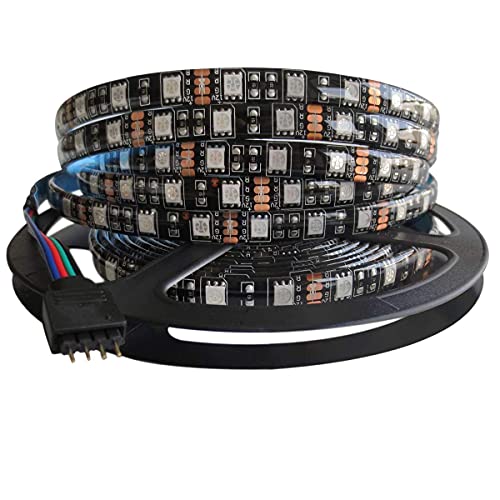
Black PCB board 5050 SMD RGB LED strip light, high intensity and reliability. Waterproof flexible LED strip (IP65 Waterproof Level).

【STUNNING RGB EFFECT】PAUTIX RGB smart IC COB USB LED light strip with built-in lamp bead IC, 90 ICs/m (180 ICs in total), IC model is 1615, creates brighter, ultra-uniform lighting performance, very suitable Reduces eye strain in bright screens and dark surrounding areas. Unlike ordinary RGB LED light strips, PAUTIX RGB smart IC COB (chip on board) LED light strips can continuously chase multiple colors. Strip lights create a rainbow-like effect to reinvent your holiday decor
Prerequisites/Materials Needed
Editor’s Choice
Philips Hue A19 LED Smart Light Bulb 3-Pack – White and Color Ambiance -…
Color Smart Light Bulbs (2-Pack) A19 E26, Matter Compatible RGB + Tunabl…
Skill Level & Time Estimate
Skill Level: beginner
Total time estimate: 1-2 hours
Recommended Products

Wifi Led Lights Kit: Easy to control the light; The led light strips are designed with voice control and work with Alexa; Use simple conversation starters to turn your lights on and off, set color, make them brighter; Led lights for bedroom is 50 feet,it is long enough for decorating a room

【Bluetooth Calls & Smart Notifications】 PODOEIL Bluetooth smart watches for men is compatible with most iOS 8.0 and Android 4.4 and above. With a built-in hi-fi speaker and microphone, it supports Bluetooth to make and receive calls, receive message alerts and voice assistants, freeing your hands from your cell phone and allowing for freer communication.

App & remote control : Download the tuya APP, you can control the smart WiFi led strip lights anywhere with your mobile phone, no matter you are working in the office or on vacation; Also you can use group function to create a group for multiple led strips, and then activate them all with one click (2.4GHz Wi-Fi only) Remarks : when connect to app, make sure that the connection between power adapter and signal white box Insert and remove three times
Skill Level & Time Estimate
Editor’s Choice
RGBIC LED Strip Lights, Smart LED Lights for Bedroom, Bluetooth LED Ligh…

Amazon Basics Smart A19 LED Light Bulb, Color Changing, 9W (60W Equivale…
LIFX Color Smart Light Bulbs (2-Pack) A19 E26, Matter Compatible RGB + T…
Step 1: Choose Compatible Smart Lights
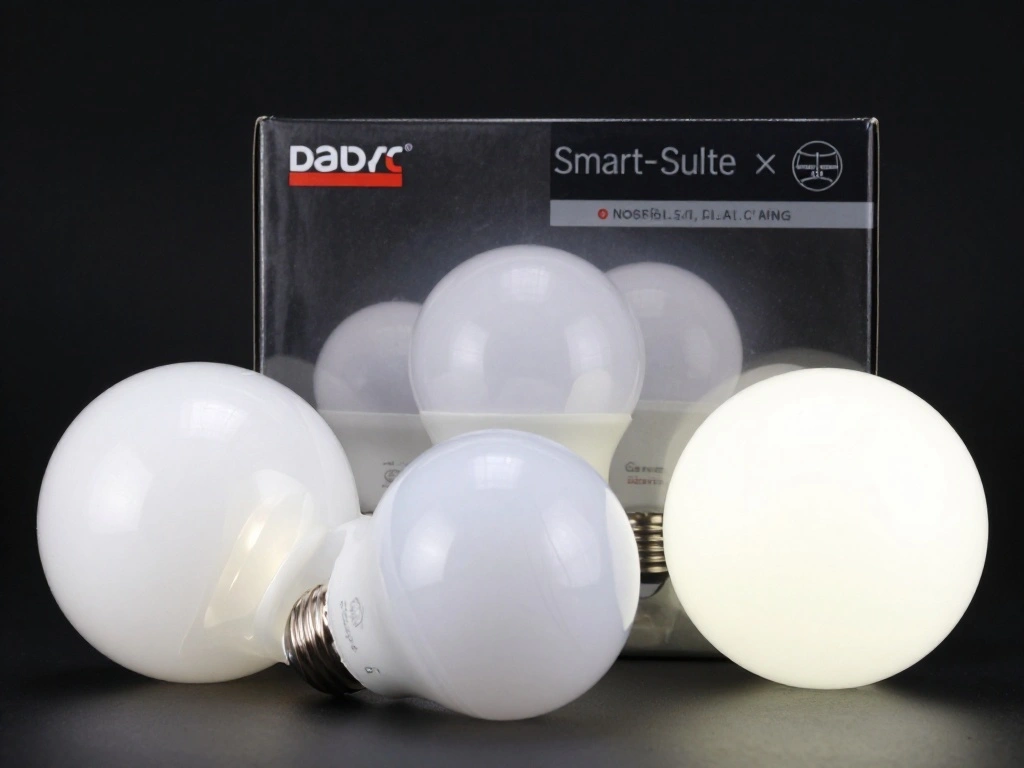
Select smart lights that are compatible with your devices and applications. Some popular options include Philips Hue and LIFX. Here’s how to proceed:
- Research smart lights that work with your preferred music and movie apps.
- Check for compatibility with your Wi-Fi network.
- Purchase at least two smart bulbs for a dynamic effect.
Pro Tip: Look for lights with music sync features to enhance your experience.
Why this matters: Choosing the right smart lights ensures that you can effectively sync them with your audio and visual content. This foundational step sets you up for success in creating an immersive environment.
Time estimate: 15-30 minutes.
Recommended Products

【TV LED Lights with Million Colors】KANTUTOE TV LED lights strip features a remarkable 16 million colors mood light, capable of generating various color atmospheres for different settings. Whether it's your bedroom, gaming room, or home theater, this TV LED lights can consistently create unique scenes and ambiances tailored to your preferences.

Colorful LED Lights: Features 16 million color LED strip capable of creating various mood lighting effects for different settings like bedroom, gaming room, or home theater. Bring you a better visual experience.

LED Backlight Synchronized with Music: The TV LED backlight has a built-in microphone that collects music and ambient sound intensity in real time. Pressing the music button on the remote control will change the color and speed according to the outside sound.
Step 1: Choose Compatible Smart Lights
Editor’s Choice

Play Gradient 65″ Smart TV Light Strip, Flowing Color-Changing LED Strip…

RGBIC LED Strip Lights, 32.8ft Smart LED Lights for Bedroom, Bluetooth L…
Color Smart Light Bulbs (2-Pack) A19 E26, Matter Compatible RGB + Tunabl…
Step 2: Install the Smart Light App
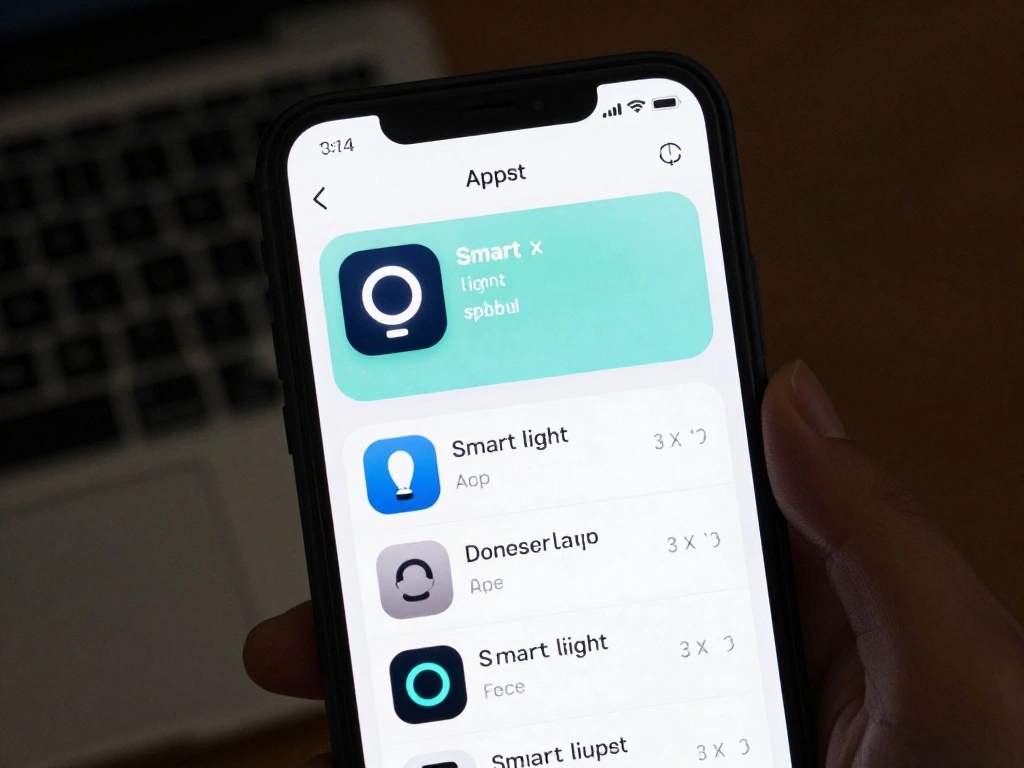
Download the app that corresponds to your smart lights. Follow these steps:
- Go to the App Store (iOS) or Google Play Store (Android).
- Search for the app (e.g., Philips Hue, LIFX).
- Tap ‘Install’ and open the app after installation.
Pro Tip: Make sure your smartphone is connected to the same Wi-Fi network as your smart lights.
Why this matters: The app is essential for configuring and controlling your smart lights. Proper installation ensures that you can easily sync them to your music and movies.
Time estimate: 10-15 minutes.
Recommended Products

【Alexa & Google Home Voice Control: Hands-Free Convenience】As smart bulbs that work with Alexa & Google Home, it supports voice commands to turn on/off, adjust brightness, and switch colors—perfect for cooking, baby care, or remote work. No hub required: download the AiDot App, integrate with Alexa/Google Home, then link the LED light bulbs to alexa devices or google—3 simple setup steps. It connects to 2.4GHz WiFi, ensuring stable, lag-free voice response for effortless control from anywhere

【Compatibility Note at First】Works with AC 120V only. Supports 2.4GHz Wi-Fi band only – 5G band are not supported. Dual-band routers work fine – simply choose the 2.4GHz hotspot during setup. If 2.4GHz and 5GHz share the same name and connection fails, set different names for each band and retry. ⚠️Requires DayBetter App – Not compatible with Tuya, Smartlife, Magic Home App. Does not support MATTER/Home Assistant by now. Do not use with physical dimmer switches – dim via the App or voice.

Higher Brightness: With over 1000 lumens (120V), these smart bulbs can brighten large space for your home. Get high brightness (75W Equivalent) and vibrant colors(CRI90+) while saving more on your energy bill.
Step 2: Install the Smart Light App
Editor’s Choice
A19 LED Smart Light Bulb 3-Pack – White and Color Ambiance – 60W Indoor …
Govee RGBIC LED Strip Lights, Smart LED Lights for Bedroom, Bluetooth LE…
Color Smart Light Bulbs (2-Pack) A19 E26, Matter Compatible RGB + Tunabl…
Step 3: Set Up Your Smart Lights
Connect your smart lights to the app by following these steps:
- Open the smart light app.
- Follow the on-screen instructions to add your bulbs.
- Ensure that the app recognizes all installed bulbs.
Warning: Ensure that your Wi-Fi is stable during this process to avoid connectivity issues.
Why this matters: Proper setup is crucial for the app to control your smart lights effectively. This step allows you to customize their behavior for syncing with music and movies.
Time estimate: 15-20 minutes.
Recommended Products
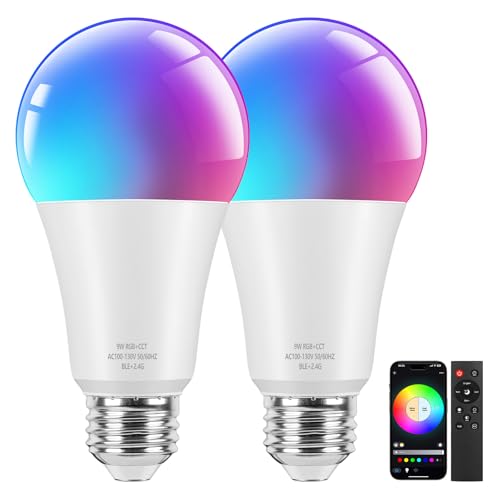
Stable Bluetooth Connection: Our smart light bulbs are connected with easy Bluetooth, more stable than WIFI connection. Moreover, with the free customized briturn App (iOS, Android), you can easily control your lighting from anywhere, whether you're cozy on the couch or away from home, effortlessly adjusting brightness and color to match your mood.

16 Million DIY Colors: Govee smart light bulbs own millions of color and 54 preset scene modes, you can explore your favored one or pick one suits your moods most, bringing yourself a real fantastic lighting experience(working oltage: AC 120V).

【Color Changing Smart Light Bulbs】Linkind smart bulb provides 16 millions color, colorful your life.1800K soft white to 6500K cool white as daily lighting.
Step 3: Set Up Your Smart Lights
Editor’s Choice

Amazon Echo Hub (newest model), 8” smart home control panel, Designed …
Amazon Basics Smart A19 LED Light Bulb, Color Changing, 9W (60W Equivale…

TP-Link AC1200 WiFi Extender – 1.2Gbps Home Signal Booster, Dual Band 5G…
Step 4: Explore Syncing Options
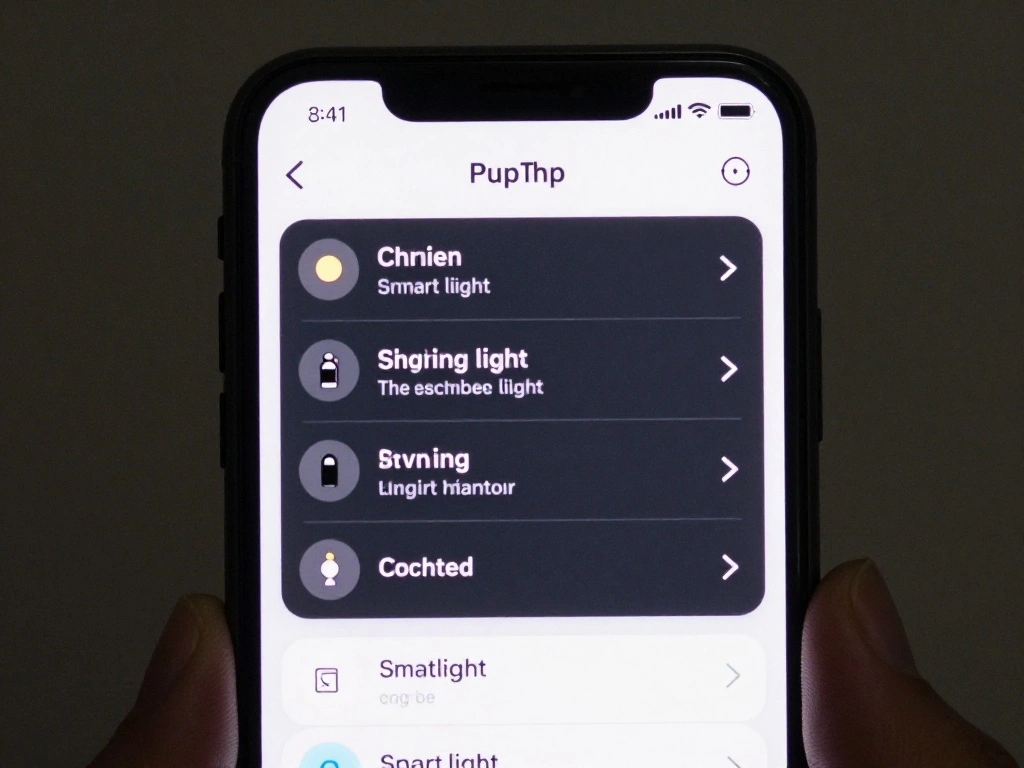
Familiarize yourself with the syncing options available in your app. Here’s how:
- Open the app and navigate to the settings or sync section.
- Explore options for syncing with music and movies.
- Read any instructions or guidelines provided for optimal use.
Pro Tip: Some apps offer tutorial videos to help you understand syncing better.
Why this matters: Understanding the syncing features maximizes your experience and enables you to create the desired atmosphere during entertainment.
Time estimate: 10-15 minutes.
Recommended Products

Smart App Control: This RGB COB LED strip light works with the Tuya or Smart Life app. The kit connects easily via Bluetooth, allowing you to turn the light on/off, adjust brightness, change colors, and create DIY scenes to set the perfect atmosphere for parties or movie nights (Note: group control is not supported)

Multi-Zone RGB Lighting – Customize you controller with 4 individual lighting zones and 3 lighting modes for thousands of color combinations

[What’s special about the Strip] - Unlike normal RGB LED Strip that can show only one color in the same time of a strip, the GINGSOW RGB COB LED Strip light applied with IC technology, that is different colors displayed simultaneously on the strip. The IC is addressable, segment control with its color, mode, and speed of the light strip by using an addressable LED controller according to the pixels(Strip only, power supply and controller sell seperately).
Step 5: Syncing with Music
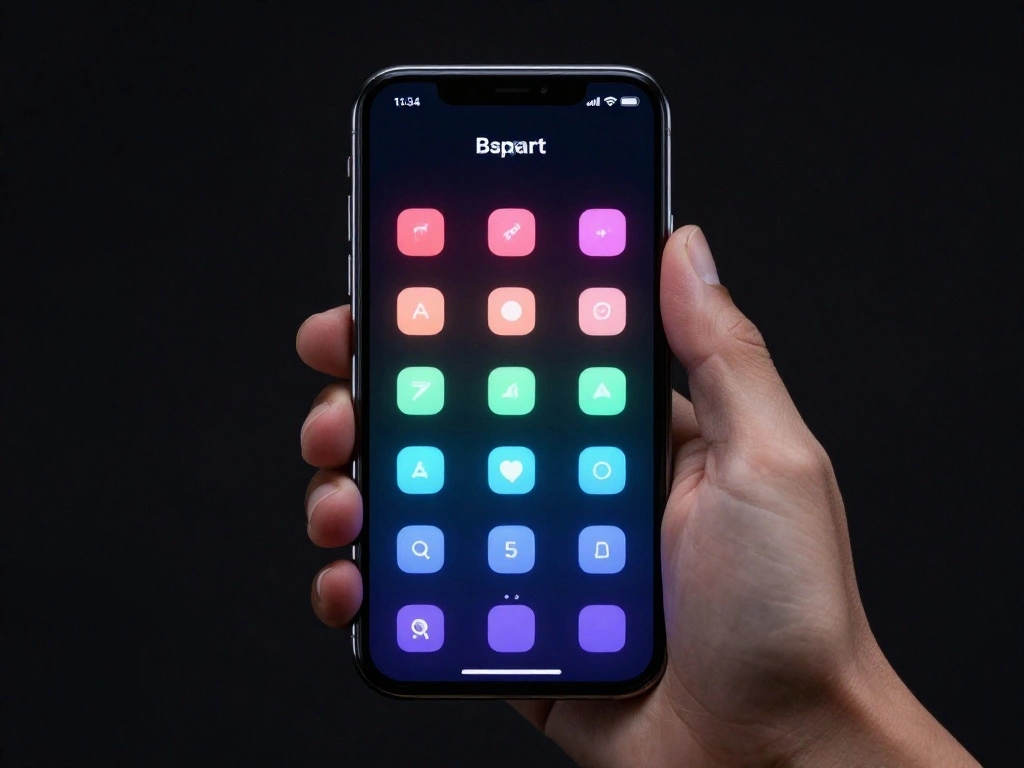
Set up your smart lights to sync with music. Follow these steps:
- Open your music app and select a song.
- Return to the smart light app and enable music sync mode.
- Test the lights to ensure they respond to the beat.
Warning: Ensure your phone volume is at an audible level for the sync to work effectively.
Why this matters: Syncing lights to music creates an engaging environment that enhances your listening experience, making it more lively and enjoyable.
Time estimate: 15-20 minutes.
Recommended Products

【Bluetooth Calls & Smart Notifications】 PODOEIL Bluetooth smart watches for men is compatible with most iOS 8.0 and Android 4.4 and above. With a built-in hi-fi speaker and microphone, it supports Bluetooth to make and receive calls, receive message alerts and voice assistants, freeing your hands from your cell phone and allowing for freer communication. Note: lf you do not want your cell phone sound to come out of the watch, turn off "Media Audio" in the smartwatch.

❶【Energy Saving】- Our ceiling light to replace 100W fluorescent tube fixture saving 65% on your electric bill. Reduce re-lamp frequency with a rated lifespan of 50,000 hrs
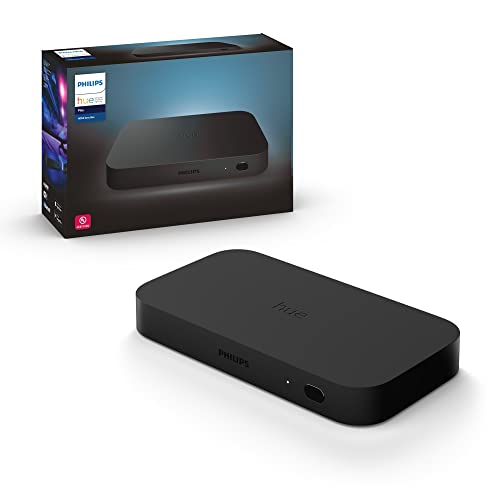
WHAT'S IN THE BOX - Includes one Hue Play HDMI Sync Box one power adapter, and one HDMI cable; Perfect for an immersive media experience
Step 5: Syncing with Music
Editor’s Choice
Govee RGBIC LED Strip Lights, Smart LED Lights for Bedroom, Bluetooth LE…
Amazon Basics Smart A19 LED Light Bulb, Color Changing, 9W (60W Equivale…
Philips Hue A19 LED Smart Light Bulb 3-Pack – White and Color Ambiance -…
Step 6: Syncing with Movies
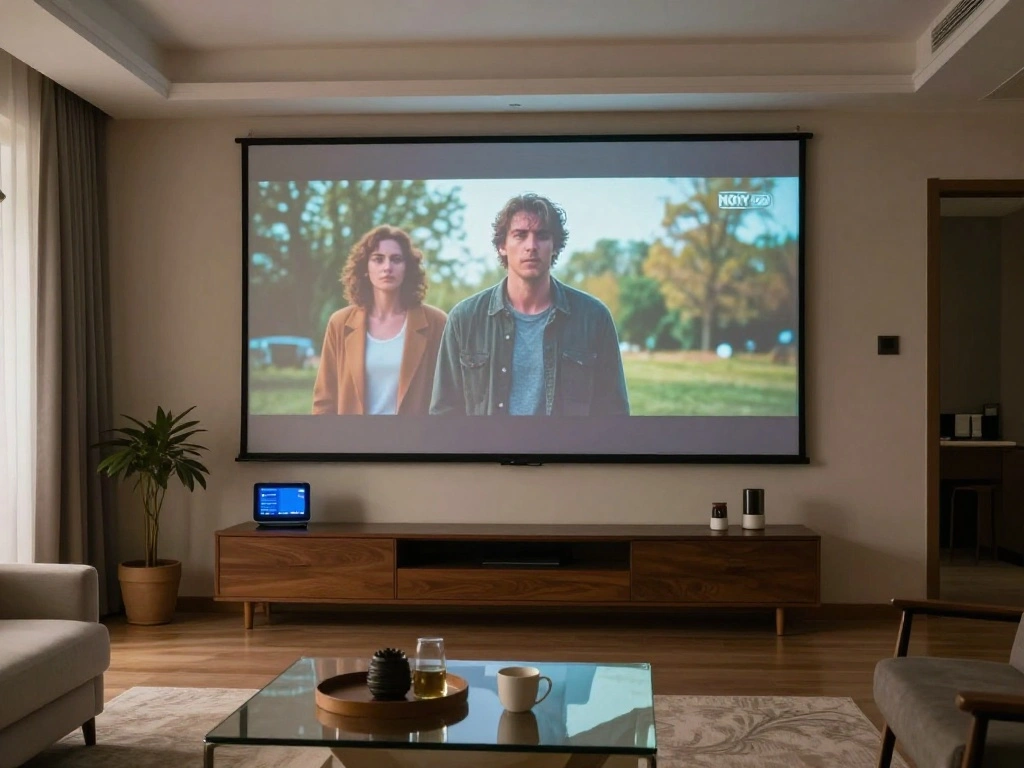
Now sync your smart lights with movies for an immersive viewing experience. Here’s how:
- Open the media player app and start a movie.
- In the smart light app, select the movie sync option.
- Adjust settings if necessary, and ensure the lights respond to the film.
Pro Tip: Use a dark room for maximum effect when watching movies.
Why this matters: Syncing lights with movies adds dramatic flair, enhancing scenes and making you feel a part of the story.
Time estimate: 15-20 minutes.
Recommended Products

Camera-Based Screen Sync: The included sync camera captures colors from your TV or PC monitor and extends them to the wall in real time, creating an immersive lighting experience for movies, gaming, sports, and videos.

Music-Sync TV LED Backlight—A built-in microphone captures music and ambient sound in real time. Activate the music mode via remote control, and the TV LED backlight will automatically shift colors and brightness following audio beats. Elevates the atmosphere for parties, movie nights, and everyday relaxation.
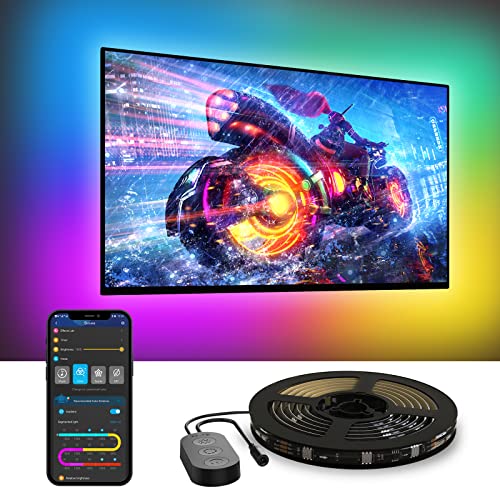
A Symphony of RGBIC Lighting: Govee RGBIC technology realizes the color segmentation display of the TV lights behind, creating more dynamic and gorgeous lighting effects. Experience more vibrant colors in your TV lights and upgrade your visuals.
Step 6: Syncing with Movies
Editor’s Choice
LIFX Color Smart Light Bulbs (2-Pack) A19 E26, Matter Compatible RGB + T…

100ft RGBIC LED Strip Lights, Smart LED Lights Work with Alexa and Googl…
Philips Hue A19 LED Smart Light Bulb 3-Pack – White and Color Ambiance -…
Step 7: Customize Light Settings
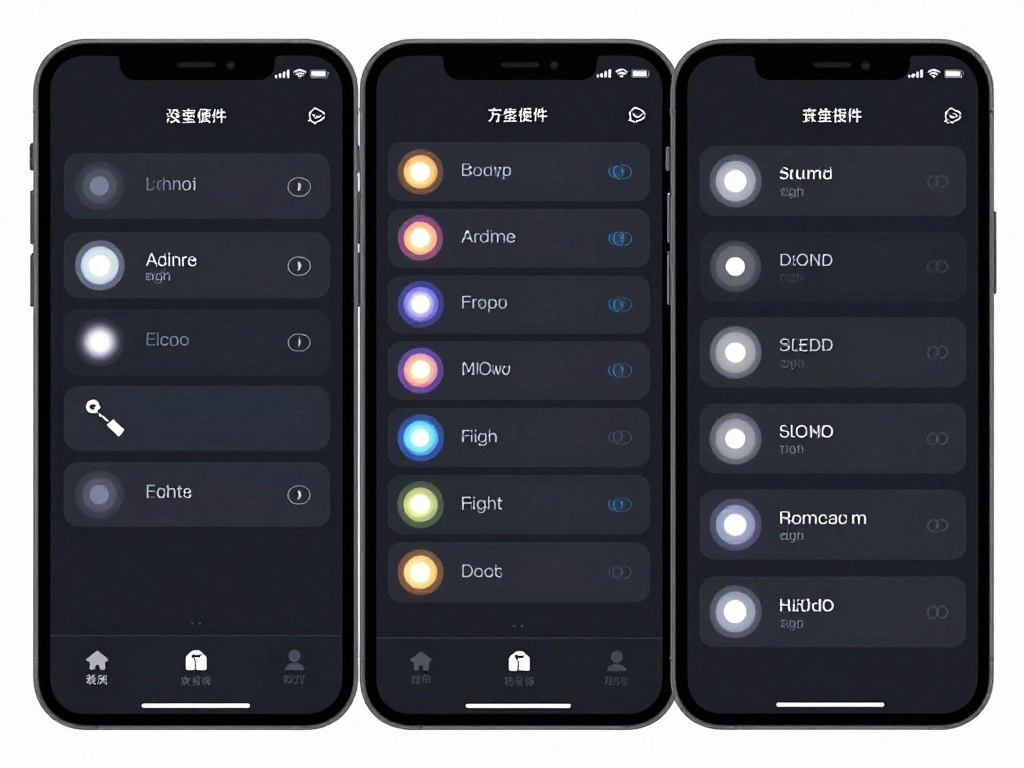
Personalize your lighting experience by adjusting settings. Follow these steps:
- Access the settings section in your smart light app.
- Explore options like brightness, color, and scene modes.
- Save your preferred settings for easy access during future use.
Warning: Be mindful of light brightness to avoid eye strain during prolonged viewing.
Why this matters: Customizing light settings ensures that your experience aligns with your preferences and enhances your comfort level.
Time estimate: 10-15 minutes.
Recommended Products

High Brightness: With 1350 lumens (100W Equivalent), these smart bulbs bring out brighter white and colorful lights for larger spaces. Perfect for any occasion because the smart bulbs can also be dimmed via apps and a voice Assistant whenever you want a darker light to relax. Please dim the light with apps or a voice assistant, and don’t dim it with dimmer switches.

【Compatibility Note at First】Works with AC 120V only. Supports 2.4GHz Wi-Fi band only – 5G band are not supported. Dual-band routers work fine – simply choose the 2.4GHz hotspot during setup. If 2.4GHz and 5GHz share the same name and connection fails, set different names for each band and retry. ⚠️Requires DayBetter App – Not compatible with Tuya, Smartlife, Magic Home App. Does not support MATTER/Home Assistant by now. Do not use with physical dimmer switches – dim via the App or voice.

【Compatibility Note at First】Works with AC 120V only. Supports 2.4GHz Wi-Fi band only – 5G band are not supported. Dual-band routers work fine – simply choose the 2.4GHz hotspot during setup. If 2.4GHz and 5GHz share the same name and connection fails, set different names for each band and retry. ⚠️Requires DayBetter App – Not compatible with Tuya, Smartlife, Magic Home App. Does not support MATTER/Home Assistant by now. Do not use with physical dimmer switches – dim via the App or voice.
Step 7: Customize Light Settings
Editor’s Choice
RGBIC LED Strip Lights, Smart LED Lights for Bedroom, Bluetooth LED Ligh…
A19 LED Smart Light Bulb 3-Pack – White and Color Ambiance – 60W Indoor …
LIFX Color Smart Light Bulbs (2-Pack) A19 E26, Matter Compatible RGB + T…
Step 8: Test and Adjust Syncing

Evaluate how well your smart lights sync with music and movies. Here’s how:
- Play a song or movie again.
- Observe how well the lights respond to the audio or visual cues.
- Make adjustments through the app if needed.
Pro Tip: Experiment with different songs and movies to find the best sync settings.
Why this matters: Testing ensures that your setup works smoothly and allows you to fine-tune the experience for maximum enjoyment.
Time estimate: 15-20 minutes.
Step 8: Test and Adjust Syncing
Editor’s Choice
Govee RGBIC LED Strip Lights, Smart LED Lights for Bedroom, Bluetooth LE…

OIYN Smart RGBICW LED Corner Floor Lamp – 16 Million DIY Colors, 68+ Sce…

RGB Color Changing Light Bulbs,RGB LED Light Bulbs,9W Warm White 6500K,4…
Step 9: Share Your Setup
Once you’re satisfied with your smart light setup, share your experience! Here’s how:
- Take photos or videos of your synced lights in action.
- Post them on social media or share with friends.
- Invite friends over to showcase the immersive experience you’ve created.
Pro Tip: Encourage friends to try syncing their own smart lights!
Why this matters: Sharing your setup not only allows others to enjoy the experience but also connects you with a community of smart light enthusiasts.
Time estimate: 10-15 minutes.
Step 9: Share Your Setup
Editor’s Choice

Smart Light Bulbs, Color Changing Light Bulb, Work with Alexa and Google…

AILBTON 400FT RGB+IC Smart Outdoor String Lights, IP67 Waterproof LED Co…
Color Smart Light Bulbs (2-Pack) A19 E26, Matter Compatible RGB + Tunabl…
Step 10: Regularly Update Your App
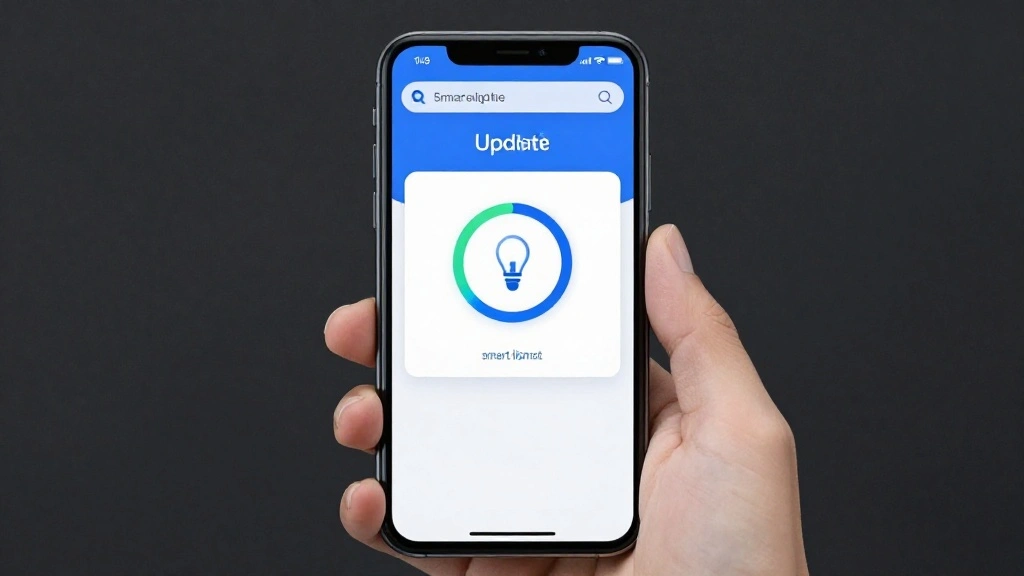
Maintain your smart light experience by ensuring your app is up to date. Here’s what to do:
- Check for updates in the App Store or Google Play Store.
- Install any available updates.
- Restart the app to apply the changes.
Warning: An outdated app may affect performance and syncing capabilities.
Why this matters: Keeping the app updated ensures you have access to the latest features and improvements, enhancing your overall experience.
Time estimate: 5-10 minutes.
Step 10: Regularly Update Your App
Editor’s Choice

Lutron Caseta Original Smart Light Switch Kit w/ Wall Plate and Smart Hu…
Amazon Basics Smart A19 LED Light Bulb, Color Changing, 9W (60W Equivale…
Pro Tips
- Multiple Lights: Use multiple smart lights in different locations for a more immersive experience.
- Smart Speakers: Integrate smart speakers for voice control and additional audio sync options.
- Scene Modes: Explore pre-set scene modes in your app for quick setup.
- Community Insights: Join online forums or groups for tips and tricks from other users.
- Regular Maintenance: Regularly check your light bulbs’ health to ensure optimal performance.
Pro Tips
Editor’s Choice

Linkind Smart Light Bulbs, Smart Bulb that Work with Alexa, Google Home,…

Sonos Era 100 – Black – Wireless, Alexa Enabled Smart Speaker
Govee Smart Light Bulbs, Color Changing Light Bulb, Work with Alexa and …
Common Mistakes to Avoid
Warning: Skipping Compatibility Checks: Not checking if your lights are compatible can lead to frustration. Always verify compatibility before purchasing. Solution: Research models beforehand.
Warning: Neglecting Wi-Fi Stability: An unstable Wi-Fi connection can disrupt syncing. Solution: Ensure your network is strong before starting.
Warning: Ignoring Updates: Outdated apps can hinder performance. Solution: Regularly check for and install updates.
Common Mistakes to Avoid
Editor’s Choice
Amazon Echo Hub (newest model), 8” smart home control panel, Designed …
Linkind Smart Light Bulbs, Smart Bulb that Work with Alexa, Google Home,…
TP-Link AC1200 WiFi Extender – 1.2Gbps Home Signal Booster, Dual Band 5G…
Troubleshooting Section
Problem: Lights not responding to music.
Solution: Ensure your phone volume is up and the app is in music sync mode.
Problem: Syncing issues with movies.
Solution: Restart the app and re-select the movie sync option.
Problem: App crashes during setup.
Solution: Restart your device and try again.
Problem: Lights not connecting to Wi-Fi.
Solution: Check your Wi-Fi settings and ensure the bulb is powered on.
Troubleshooting Section
Editor’s Choice

16W Recessed Lighting 6 inch,RGBCW Smart Ceiling Light with Color Changi…
TP-Link AC1200 WiFi Extender – 1.2Gbps Home Signal Booster, Dual Band 5G…
Amazon Basics Smart A19 LED Light Bulb, Color Changing, 9W (60W Equivale…
Variations/Alternative Methods
Consider these variations for syncing smart lights:
- Using Third-Party Apps: Some apps like ‘IFTTT’ offer advanced syncing options.
- DIY Solutions: Explore DIY setups with Raspberry Pi for a custom experience.
When to use each method: Choose third-party apps for advanced features, or DIY for a customized approach.
Variations/Alternative Methods
Editor’s Choice
Govee Smart Light Bulbs, Color Changing Light Bulb, Work with Alexa and …

Raspberry Pi 4 4GB Starter PRO Kit – 4GB RAM
Amazon Basics Smart A19 LED Light Bulb, Color Changing, 9W (60W Equivale…
FAQs
What if I don’t have smart lights? You can purchase compatible smart lights online or at local stores.
Is it safe to leave smart lights on all night? Yes, but it’s advisable to use timers to save energy.
How long should I keep my app updated? Regularly check for updates at least once a month.
FAQs
Editor’s Choice
AILBTON 400FT RGB+IC Smart Outdoor String Lights, IP67 Waterproof LED Co…
Amazon Basics Smart A19 LED Light Bulb, Color Changing, 9W (60W Equivale…
Bulb Color, 1100 Lumen WiFi RGB and Tunable White A19 Smart Bulb, Works …
Conclusion
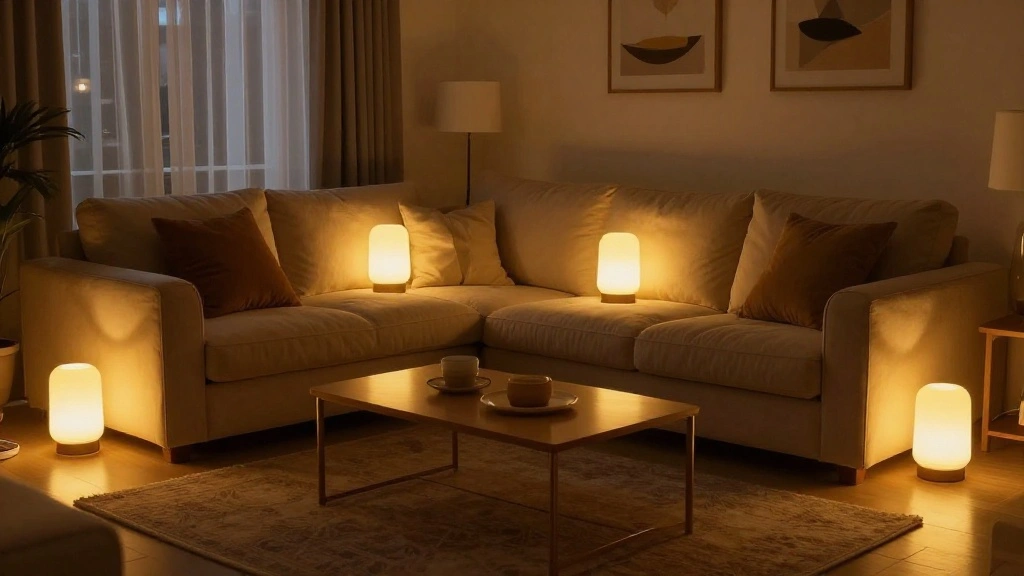
Congratulations! You’ve successfully synced your smart lights to music and movies, enhancing your entertainment experience. Now, you can enjoy vibrant lighting that complements your favorite tunes and films.
As a next step, consider experimenting with different settings and sharing your setup with friends. Explore other smart home features to continue enhancing your living space!